
Domain Controllers “Grayed out” in SCOM 2012
I did a few new SCOM 2012 installs recently and noticed that after pushing the agent to the DCs, they showed up grayed out in Ops Manager. Here’s a quick tip on how to fix that.
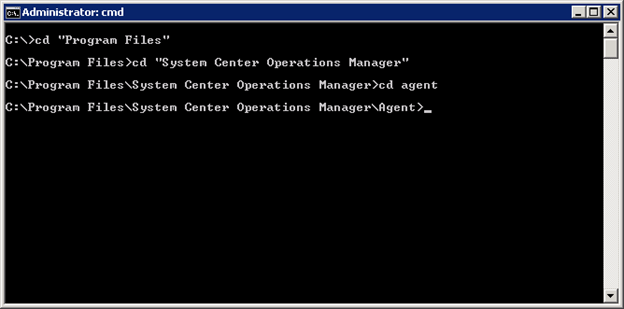
Logon to the DC(s), and with an administrative comand prompt run the HSLockdown tool, and add the local system account to the allowed group.
C:\Program Files\System Center Operations Manager\Agent:
*NOTE* In newer version, this is now stored in “C:\Program Files\Microsoft Monitoring Agent\Agent”
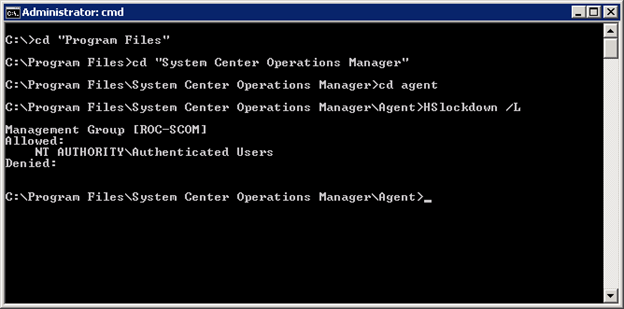
Run the command “HSLockdown /L” to show what accounts are being allowed or denied. In this case, my local system isn’t even populated.
Now run the HSLockdown tool again with the add switch to allow local system.
“HSLockdown /A “NT AUTHORITY\SYSTEM”
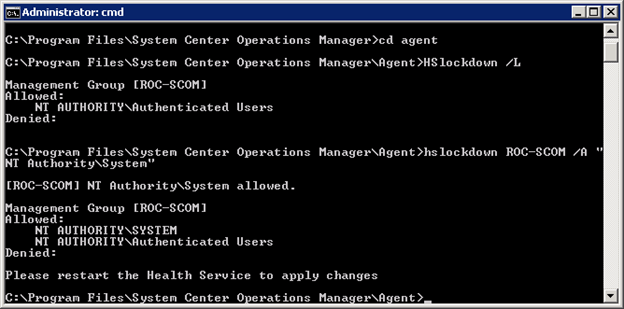
Restart the agent with “net stop heathservice && net start healthservice” and give it 5 minutes or so then it should be all green in your dashboard.
Hope this made your day at least a little easier!
