

The purpose of this configuration is to decrease the time for large SQL backups in VMware virtual machines that are being backed up by VEEAM. In our scenario we have a SQL server and a File Server. We want to mount this in physical compatibility mode on the SQL server, to increase backup time by contacting the LUN on the SAN directly. Since RDM disks are independent, we want to mount the same volume in virtual compatibility mode on the FileServer so that it can be backed up by VEEAM.
For further detail on RDM, please reference the following documentation.
http://www.vmware.com/pdf/esx25_rawdevicemapping.pdf
1. Configuring the SQL Server RDM in Physical Compatibility Mode
Here are the general steps to configuring RDM for physical and virtual compatibility mode.
- Create a LUN on the backend storage device.
- Rescan for storage devices in to confirm the LUN shows up correctly, for documentation I’m using a 15GB volume.

- Once you’ve created that, go add a new hard disk. When you choose your disk type, choose “Raw Device Mappings”, and then select the LUN that was created earlier.
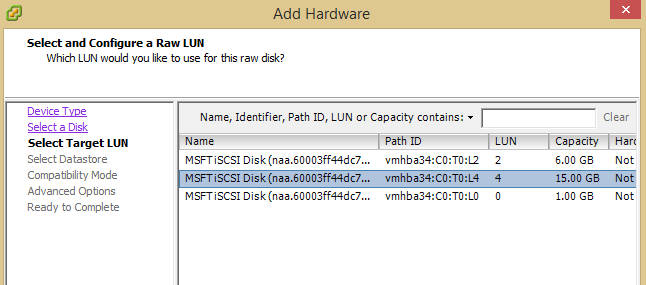
- Next choose a datastore that’s on the SAN that other VMs can access.
- Select a new virtual device node that resides on a new SCSI controller. I picked SCSI (3:0). Upon doing that a new SCSI controller will be created, then finish creating the disk.
- You must now change the newly created SCSI controller type to “LSI Logic SAS” and change the “SCSI Bus Sharing” to “Physical”.
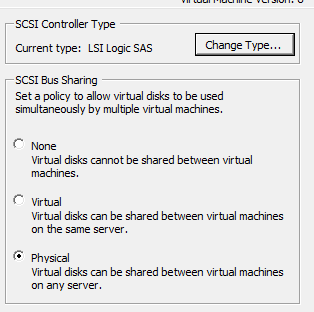
2. Configuring the File Server RDM in Virtual Compatibility Mode
At this point, we’ve now created a LUN and created a RAW mapping to the SQL virtual machine. Now it needs mapped to the File Server virtual machine so it can be picked up by the VEEAM backup.
- Edit the settings of the File Server virtual machine, and add a new hard disk.
- When creating this new hard disk, select “Use an existing virtual disk” and point to the datastore where the RDM was mapped in the last step.
- Choose a Virtual Device node that is on a difference SCSI controller than the other disks, I choose SCSI (3:2).
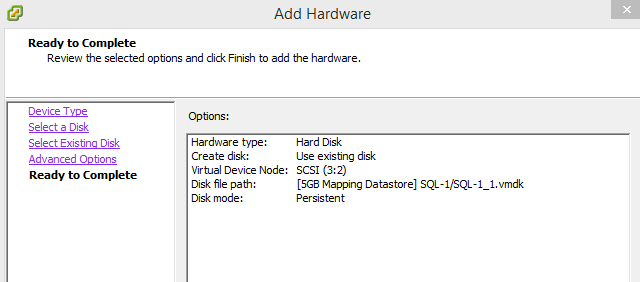
- You must now change the newly created SCSI controller type to “LSI Logic SAS” and change the “SCSI Bus Sharing” to “Physical”.
At this point, we’ve now created a LUN that has been mapped RAW to a SQL Server. That SQL server can perform it’s backups to that disk which increases backup times by about 20% based in my testing. The File Server virtual machine and the SQL Server virtual machine both now have SCSI adapters that have bus sharing enabled, and thusly the disk is also mapped to the File Server. It is mapped here in virtual compatibility mode (inherent by adding an “existing virtual disk”). This means it’s persistent and can be backed up by VEEAM.
I hope I’ve made your day, at least a little bit easier.